Getting Things Done, explained step by step
A plain-language guide to David Allen’s Getting Things Done method: the five steps, one everyday example from start to finish, and a setup in Done Bear.

The short answer
Getting Things Done (GTD) is David Allen’s method for keeping reminders outside your head. In ordinary words: write everything down, decide what each item means, put it on the right list, check your lists, and do one clear task. You can use paper, Done Bear, or another task manager.
Getting Things Done turns vague reminders into tasks you can start. A reminder such as “sort out the insurance” is hard to start, because you still have to find the policy, check the renewal date, and decide who to contact. A clearer task is “Find last year’s policy.” In this example, that means finding last year’s policy PDF in email.
This fictional home insurance example shows how to turn one vague reminder into work you can do. Start with the first step now. You do not need to set up every list before you begin.
What Getting Things Done means
David Allen created Getting Things Done, usually shortened to GTD. Its five official steps are Capture, Clarify, Organize, Reflect, and Engage. In ordinary words: write things down, decide what they mean, put them in the right place, check your lists, and do one task.
Done Bear supports this method with Inbox, Today, Upcoming, Anytime, and Someday. These are places for work at different stages. The method also works on paper or in another app.
You will use all five steps on the insurance reminder below. First save it in Inbox. Then turn it into a small task, choose the right list, check it at the right time, and do it. That is enough to begin.
Write everything down
Write down anything you are trying to remember. Do not organise it yet. For this example, write: “Sort out the insurance.” Add the renewal letter on the kitchen bench and the promise you made to compare quotes.
In Done Bear, add each reminder and choose Inbox. If you do not choose Inbox, a new task goes to Today. Inbox is useful here because it means you have saved the reminder but have not decided what to do with it.
After signing in, Done Bear opens on Today. Select New task in the footer and type Sort out the insurance. Select the task, choose Move in the footer, then choose Inbox. Repeat that for each loose reminder. Do not worry about projects or dates during this first pass.
Keep this pass quick. A line such as “Insurance renewal letter on kitchen bench” is enough. The Inbox guide shows how to empty the list later without treating every reminder as work for today.
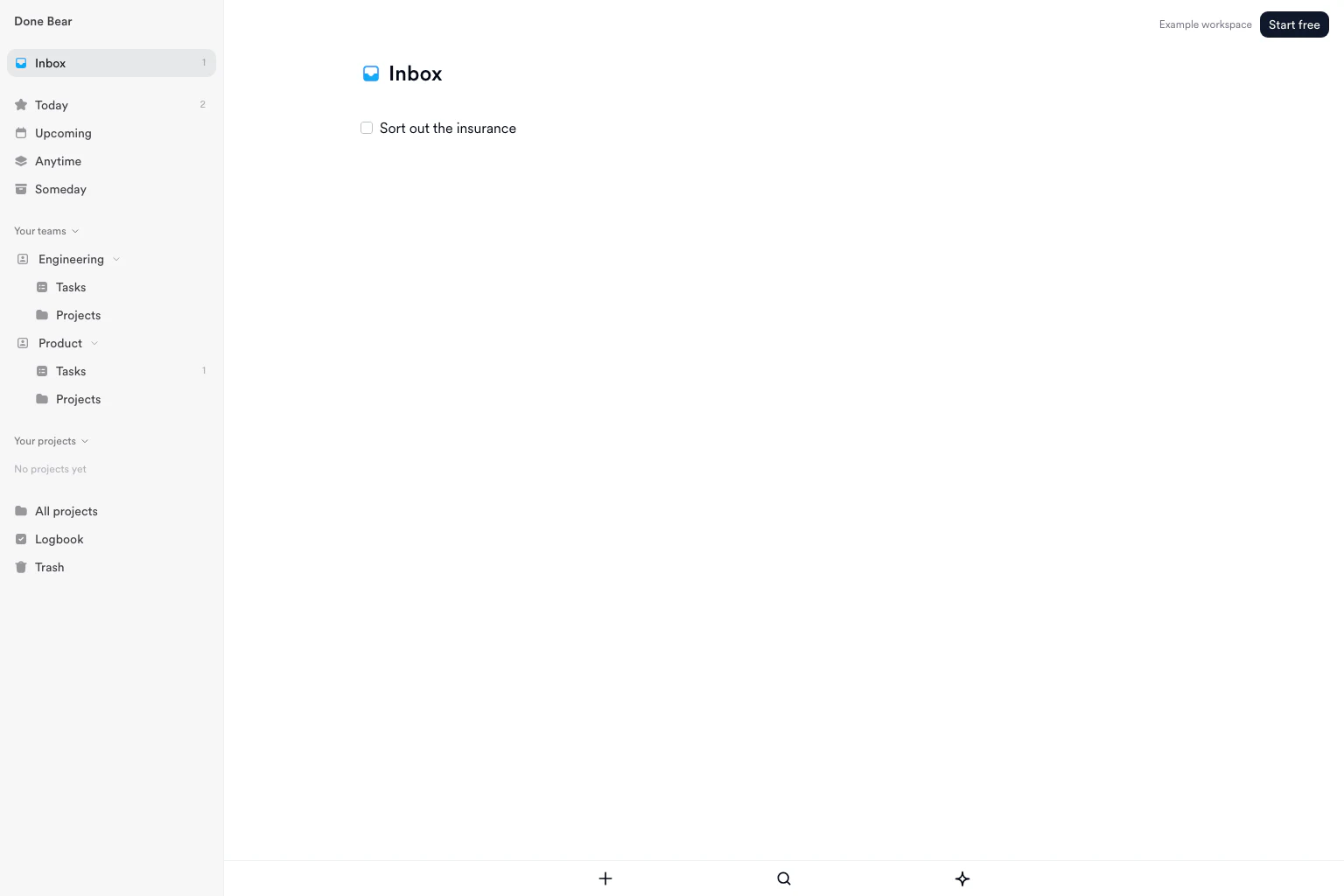
Example workspace. Save the reminder in Inbox before deciding what to do. Select the image to see it full size.
Decide what to do next
Open the first Inbox item and ask: “What is the next thing I can do?” “Sort out the insurance” takes several steps, so give it a project. In the sidebar, choose New project beside Your projects. Enter Renew home insurance in Project name, then choose Create project.
Return to Inbox and change the first task to Find last year’s policy.
Select the task, choose Move in the footer, then choose Renew home insurance. Right-click the task, choose When…, then choose Today. The task now appears in Today under the project, as shown below.
Start a task with a clear action word. “Email the broker for a renewal quote” is clear. “Broker” is not. If you would still have to stop and work out what the task means, make it smaller.
Some Inbox items do not need action. Delete junk. Keep the policy PDF with your documents, or attach it to the insurance task in the Done Bear web app. Move “Maybe add bicycle cover” to Someday because you are choosing to leave it for later.
To keep the PDF with the task, open the task in the web app and add it as an attachment. You can see attached files on other devices, but adding a file is currently a web app action. The file helps with the task. It does not need its own place on your to-do list.
If Sam agrees to compare two quotes, create Compare the two renewal quotes and assign it to Sam in your shared workspace. Then add Check insurance quotes with Sam on Thursday for yourself. This keeps the handoff visible until the answer comes back.
Put it in the right list
Choose the list that matches when you can act:
| List | Plain meaning | Insurance example |
|---|---|---|
| Inbox | Saved, but not decided | Sort out the insurance |
| Today | I plan to do this today | Find last year’s policy |
| Upcoming | Start this on a future date | Check quotes with Sam on Thursday |
| Anytime | Ready, but not planned for a day | Read last year’s exclusions |
| Someday | I am leaving this for later | Research extra bicycle cover |
Open a task and use its date picker when timing matters. A start date is the day you want the task to appear. A deadline is the last day it can be done. If the policy ends on 30 September, set that as the deadline. Choose an earlier start date for comparing quotes.
A deadline by itself stays in Anytime until it is due, then appears in Today. A future start date puts the task in Upcoming until that day. The dates guide and views guide show the details. Use dates for real timing. Do not give every task a made-up due date.
If a task should be ready now without filling Today, open the date picker and choose Anytime. Choose Someday below it when you are deliberately leaving the task alone. Clearing a start date also moves a task back to Anytime and keeps any separate deadline.
Check your lists
Check Inbox and Today each day. Decide the new Inbox items, then choose a Today list you can finish. Move a task back to Anytime if you are no longer doing it today. Keep its real deadline.
Once a week, look further. Clear Inbox, look at the past and coming week on your calendar, and check every active project. Make sure each project has one clear next task. Check work assigned to other people and look through Someday for anything that now matters.
For the insurance project, confirm the 30 September deadline, Sam’s quote task, and your Thursday follow-up. Mark Find last year’s policy complete, then add the next task. The weekly review guide has a longer checklist when you want it.
Do this check at a time you can repeat, such as Friday morning. If the full review feels too large, check Inbox, Today, the next week on your calendar, and one active project. A smaller check you complete is more useful than a long checklist you avoid.
Pick one task and do it
Look at Today and pick one task you can do with the time and tools you have. If you have fifteen minutes and can open email, choose Find last year’s policy. Search for the insurer, save the PDF, and mark the task complete.
If nothing in Today works right now, look in Anytime. Leave Upcoming alone until its date arrives. Leave Someday alone until a review brings an idea back.
Completing the PDF task does not finish the whole project. It shows you the next step. Add Read last year’s exclusions to Anytime, or put it in Today if you are doing it now.
When that is done, compare the cover with the renewal quote. If you need the broker, add Email broker about bicycle cover. Keep moving by one clear task. You do not need to plan every later step before you start the first one.
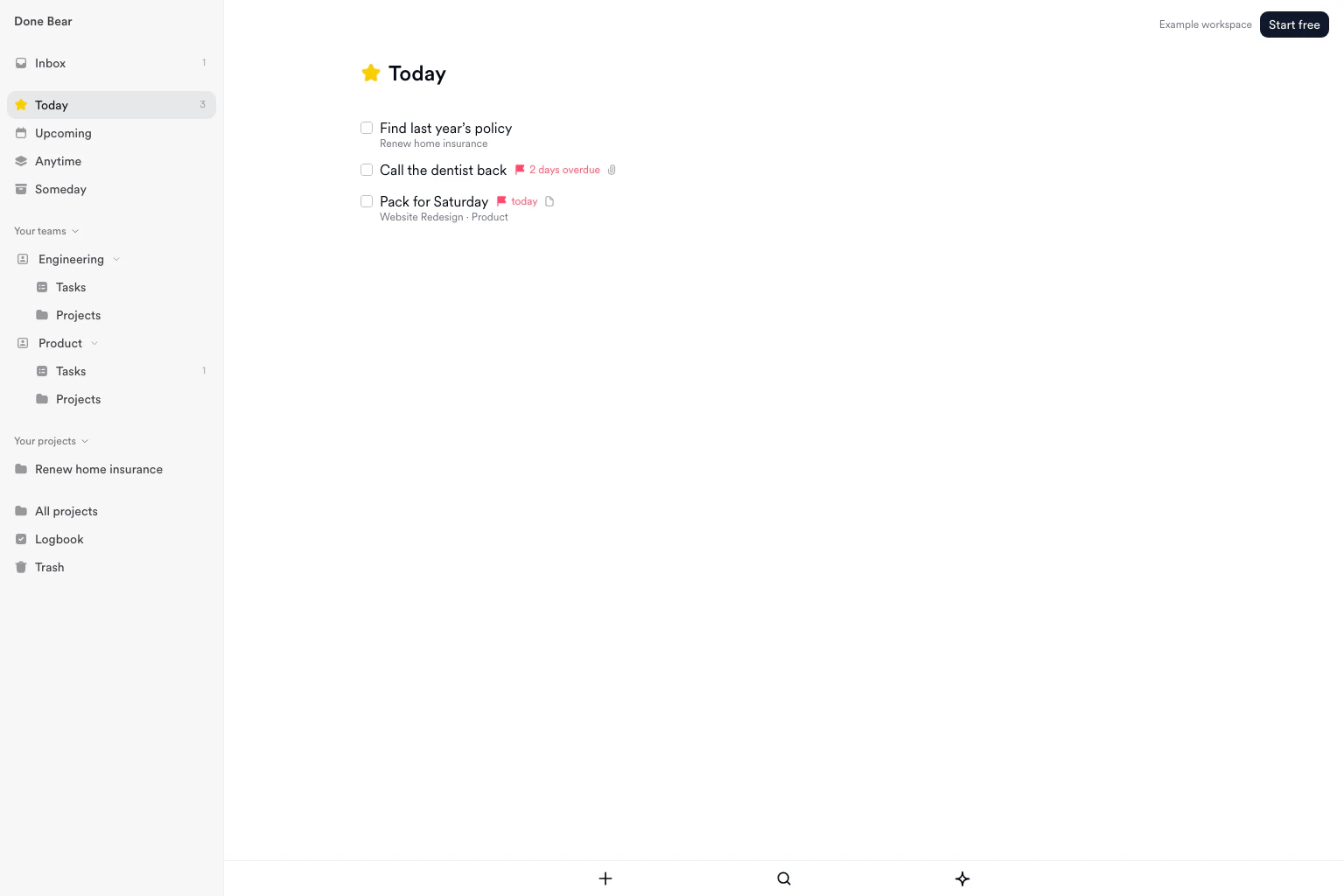
Example workspace. The vague reminder is now a task you can start. Select the image to see it full size.
Start again after a break
If you have ignored your lists for two weeks, do this short reset:
- Put loose reminders in Inbox.
- Check Today for work that is due or overdue.
- Give one active project one clear next task.
- Move old Today tasks to Anytime or Someday.
- Plan a longer weekly check for another day.
Stop when the lists are honest enough to help again. You do not have to clear everything or start with the oldest task. Pick one useful task and continue from there.
If Inbox is too large, decide the newest or most urgent items first. Leave the rest safely captured and return for another short session. Falling behind is normal. The lists are there to help you restart.
Do not spend the restart making new labels or folders. Use the five lists you already have. Once the urgent work is safe and one project can move again, pick one task. You can tidy the rest during the weekly check.
Use an assistant after the basics work
This step is optional. Done Bear’s MCP server lets supported assistants read and update your tasks after you connect your account. You could say: “Add ‘Find last year’s policy’ to my Done Bear Inbox.”
Name Inbox in the request because a task normally goes to Today. Check the assistant’s change, especially when it edits several tasks. You should still choose the project, dates, owner, and importance.
The connection uses a sign-in screen where you approve access to Done Bear. An assistant can then show Today, add a task, edit it, or mark it complete. Start with one request so you can see exactly where the task goes.
If you already trust another task manager, keep using it. The Things 3 comparison may help if you need the same lists on Windows, the web, or in a shared workspace.
Key takeaways
- Collect reminders before trying to organise them.
- Decide the next action in words you can follow.
- Use a start date for when to begin and a deadline for when it is due.
- Keep work you gave someone else on a list until it comes back.
- Check your lists, then choose one clear task you can do now.
Frequently asked questions
What does GTD stand for?
GTD stands for Getting Things Done, a method created by David Allen. Its five official steps are Capture, Clarify, Organize, Reflect, and Engage. In ordinary words, those steps mean collect, decide, put away, check, and do. The method works on paper or in an app.
How do I start GTD without setting up a complicated system?
Start with one Inbox. Write down what is on your mind, then decide the next clear task for each item. Keep work for a date, work you can do now, and ideas for later separate. Add labels or extra lists only when you know they would solve a repeated problem.
Where should I put work delegated to someone else?
Keep work you gave someone else somewhere you will check. In a shared Done Bear workspace, assign the task to that person. Add a dated reminder for yourself if you still need the result. A separate Waiting For list also works, but the name matters less than checking it.
What if I have ignored my task list for two weeks?
Recover in a short pass. Empty the Inbox, check Today for anything due or overdue, and give one active project a clear next task. Move work you are not choosing back to Anytime or Someday. Stop when your lists are useful again, then do a fuller weekly check later.
Do I need a GTD app?
No. Getting Things Done needs a place to collect reminders and a habit of checking them. Paper can work. An app helps when dates, shared work, or several devices make the lists harder to maintain. Done Bear supplies the views used in this walkthrough, but the decisions still belong to you.
Sources
Try it on your own list
Create your first task, then use the steps above to decide where it belongs.
Related guides
See every guide on the guides index.